


It is not a secret that talking animation video boosts your channel. Talking avatar animations can better capture and hold the audience’s attention than static images, make your content more digestible and accessible. If you are doing a faceless YouTube channel, why not seize the trend and get more subscribers, or even revenue now?
Most blog posts and video tutorials are extremely complicated. Here in this article, we’ve broken down the talking animation creation process into 5 simple steps, with only one AI-powered video editing tool. Let’s dive in!
Can’t Miss: Best AI Video Generators You Can’t Miss in 2026 >
Method 1. Create a Talking Animation from Scratch
Step 1. Get the Tools We Need
To create a talking animation, you will need an AI cartoon image generator, AI image to video tool, and AI text-to-speech tool. However, FlexClip saves you from the trouble of switching between tools.
FlexClip is a powerful online video editor designed to help everyone create excellent videos. Millions of royalty-free resources and animated video templates offer shortcuts to a satisfying talking animation. The following features of FlexClip make talking avatar video creation as smooth as silk.
FlexClip Interface
Step 2. Generate an Image of an AI Avatar
Firstly, click on the Generate an AI Avatar Image button below to access FlexClip’s AI Image Generator tool. Powered by the latest models like Google Nano Banana, OpenAI, Seedream, you are able to bring your dream animation character to life.

Pick an image generation model you like, enter a prompt to describe the animation character and the scene, setup image style, aspect ratio, and image count, hit Generate to get started.
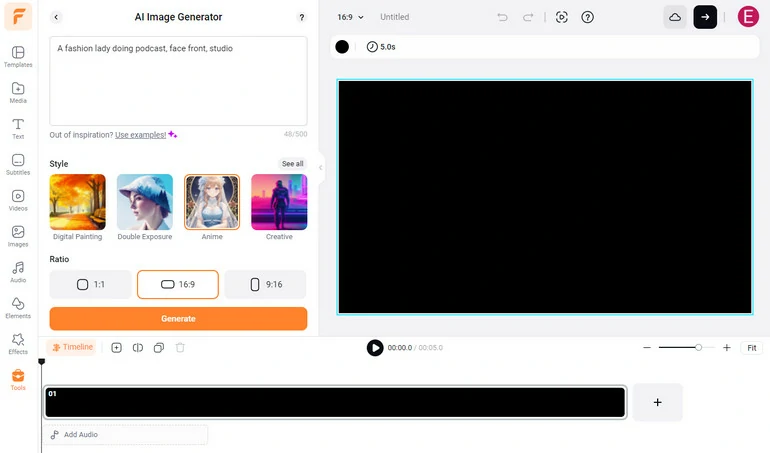
Access FlexClip's AI Image Generator
The prompt we entered is: a beautiful girl in livestreaming studio, sitting in front of a desk, wearing earphones, a microphone is near her. Check the FlexClip output.
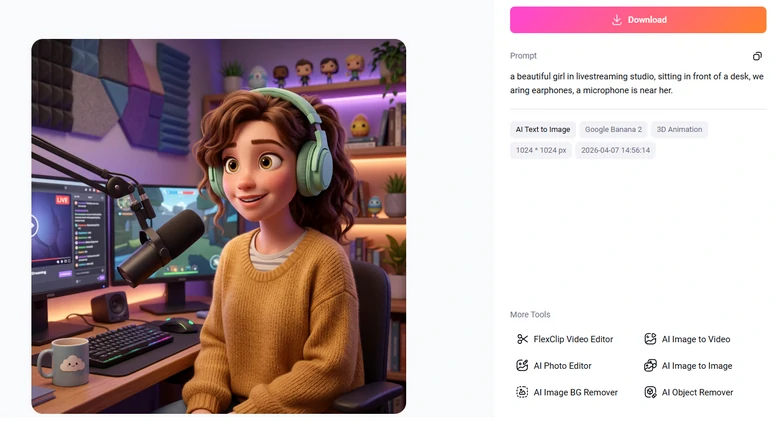
Animated Character Generation Output
Step 3. Animate the Character
Now, switch to FlexClip's Video Generator, where Veo 3.1, Seedance 2.0, Kling, Minimax models are available for all. Pick a video generation model, enter a prompt including script, the tone, and body movement, then hit Generate.
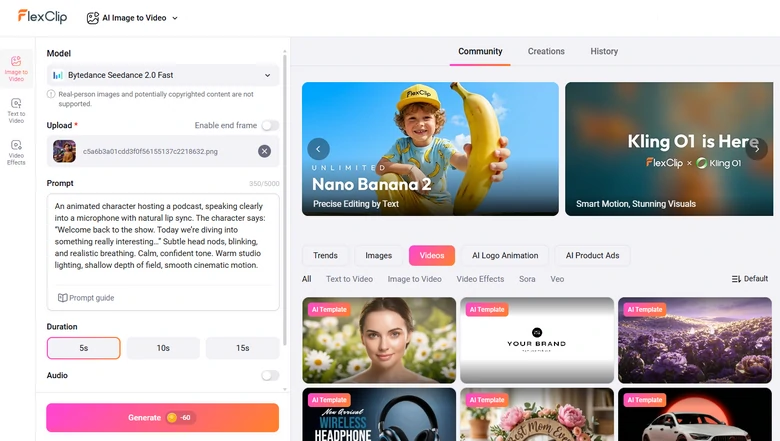
Turn Image to Talking Animation
We tried the prompt, An animated character hosting a podcast, speaking clearly into a microphone with natural lip sync. The character says: “Welcome back to the show. Today we’re diving into something really interesting…” Subtle head nods, blinking, and realistic breathing. Calm, confident tone. Warm studio lighting, shallow depth of field, smooth cinematic motion.this is what we got using Seedance 2.0.
Talking Animation Output
Step 4. Merge Video Clips
AI can now only generate up to 15-second video clips. In case you need longer talking animations, FlexClip's timeline editor helps you merge, trim talking animations, add captions, apply background music, etc. You will not need any editing experiences to get started.
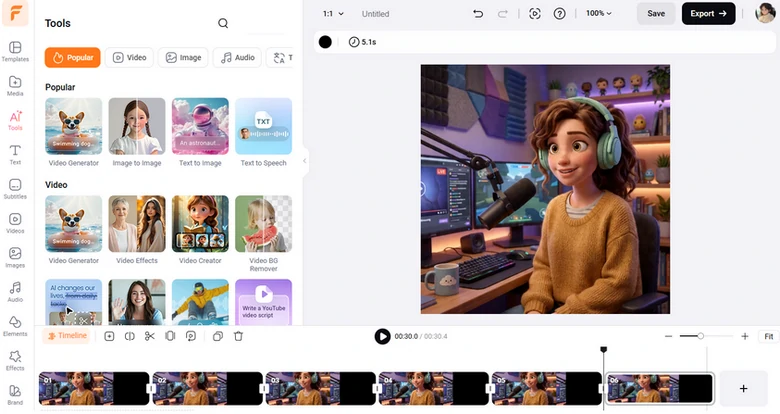
Merge Video Clips
Step 5. Instant Share
FlexClip offers you various sharing options. You can download the video to the desktop, save to cloud services, generate a short link for your video, or directly post to social media.
Method 2. How to Make an Anime from Photo Talk
Instead of manually adding a mouse animation to an avatar photo, you can make a photo talk with natural lip movement directly using tools like HeyGen. This is a much easier and more natural way to create a talking animation.
This method comes with downsides. Firstly, the figure in the image has to be big. HeyGen may have problems dealing with photos whose main figure is small. Secondly, HeyGen is expensive. The cheapest plan costs $25 per month and you only get 15 credits, which is equal to 15 minute’s video.
The downsides don’t stop you? Follow the steps below to create an animated talking video with a photo of your own!
Step 1. Create an Avatar from Your Photo
Sign up to HeyGen and enter the creation page. Switch to Make a TalkingPhoto Video section. Click on the Upload TalkingPhoto button, follow the prompt to upload a photo of animation.
You can notice that there is a new avatar instantly added to the list. However, the avatar is round. Hover your mouse over the avatar, select Edit. Change the view mode from circle to original. After that, click the Save as New button. You now have set the whole picture as an avatar.
Step 2. Ask Avatar to Speak Anything You Like
Hover over the avatar, go to portrait mode or landscape mode. The portrait mode means vertical video, perfect for Instagram, TikTok, and the landscape mode means horizontal video, best for YouTube.
Type in anything you want the avatar to say, select the language, a voice you like. The talking animation will soon be generated. Save the video with subtitles or without subtitles.
HeyGen Talking Photo Video Tutorial
Frequently Asked Questions
1. How to make talking animation using CapCut?
CapCut is a powerful video editor, and yes, you can make talking animation using CapCut. However, you need other video editing tools. Firstly, you should use an image editor to remove the anime’s mouth first. After that, you need to remove the background of the mouth moving animation video clip and apply it to the anime photo with CapCut.
2. Can CapCut convert text to speech?
Yes, CapCut can convert text to speech. Click on any text of your CapCut project, click on the AI text-to-speech feature, select a voice you like, and you will soon get the audio.




FlexClip AI Video Maker
Reach professional-quality videos faster with easy editing tools, templates, and smart AI.
Start Now for Free
Hot & Trending
-

Best Ways to Find Music in YouTube Videos
-

Instagram Story Video Quality Bad After Upload? Fix It!
-

How to Repost Video on TikTok & How to Remove TikTok Repost
-

Improve Video Quality Online: 3 AI Video Quality Enhancers You Can't Miss
-

4K Convert to HD 1080p without Watermark: Best 4k Video Converters
-

Best 8 Free Video Editors - No Download Required
-

Top 13 Birthday Video Makers with Music and Effects Free
-

How to Search Filters on TikTok & Use a Filter You See - TikTok Filter Guide


